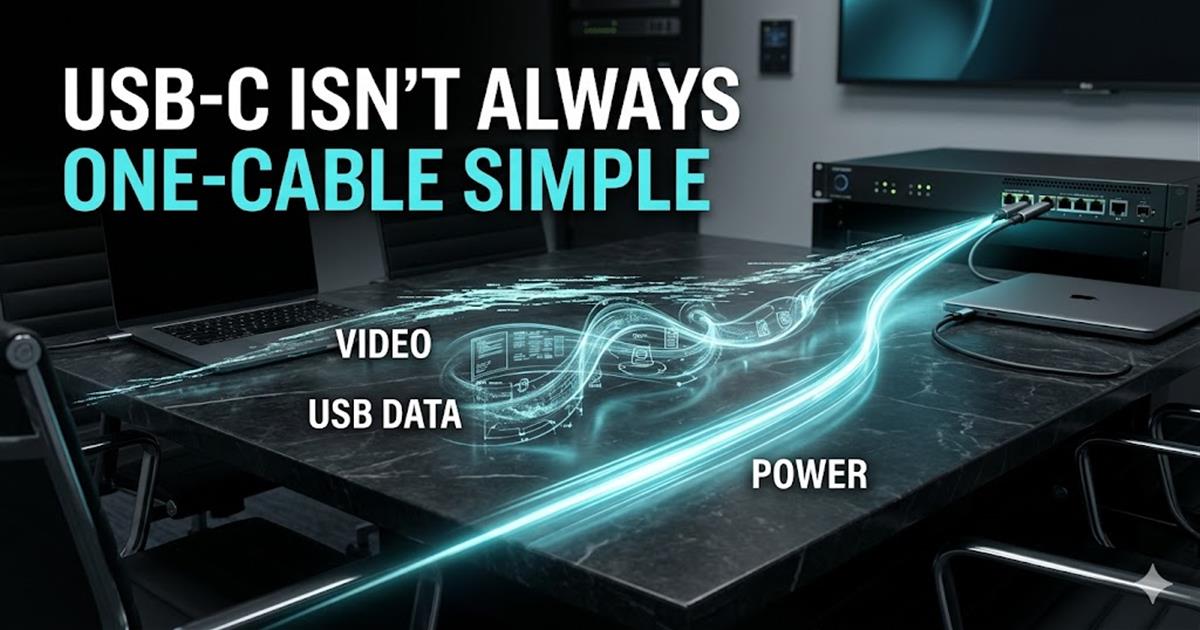
USB-C created a simple expectation: one cable should carry video, USB data, and power.
That expectation makes sense in a modern meeting room. A user walks in, plugs one USB-C cable into a laptop, and expects the room display, camera, microphone, speakers, network adapter, touch interface, and laptop charging to come alive at the same time.
When it works, it feels clean. When it fails, it feels random.
The strange part is that the same room system and the same USB-C cable can behave differently from laptop to laptop. One machine sends video, passes USB data, and charges. Another charges but has no display. Another shows video but drops the camera. Another works until the user starts a call, then the image flickers or USB devices disappear.
That is not just a bad cable problem. In AV systems, USB-C reliability is often a mismatch between expectation and negotiation.
The Connector Looks Universal. The Capabilities Are Not.
USB-C is the physical connector. It tells you the shape of the port, not the full behavior of the connection.
Behind that connector, a laptop may support different combinations of charging, USB data, DisplayPort Alternate Mode, USB4, Thunderbolt, docking, power delivery, and display bandwidth. Two laptops can both have USB-C ports and still behave very differently in the same AV room.
This matters because AV-over-USB-C setups ask a lot from one connection. The system may need to move display video from the laptop to the room, USB data from room devices back to the laptop, and power from the room system into the laptop, all at once.
The user sees one cable. The system sees a negotiation between the laptop, cable, dock, adapter, display path, USB devices, power supply, chipset, drivers, and firmware.
Video, Data, And Power Share The Same Reality.
Many USB-C AV systems rely on DisplayPort Alternate Mode for video. VESA explains that DisplayPort Alt Mode uses the USB-C connector to carry DisplayPort audio/video, USB data, and power through one connector.
That sounds like exactly what a meeting room needs. The catch is bandwidth.
USB-C has high-speed lanes inside the connection. DisplayPort Alt Mode can use some or all of those lanes for video. If more lanes are used for video, less high-speed capacity may be available for USB data at the same time. Newer USB4 and DisplayPort Alt Mode versions improve what can be carried, but the laptop, cable, dock, and display path must all support the right modes.
In plain English: the cable may fit, but the laptop still has to decide how to divide the pipe.
That pipe may need to carry:
- Display output to a room display or AV-over-IP encoder
- USB camera data back to the laptop
- USB microphone or DSP data
- Touch or control data
- Ethernet through a dock
- Power delivery to charge the laptop
If the laptop does not support the needed mix, the system may partially work. That is why "it charges but does not show video" or "video works but the USB camera fails" are so common.
AV-Over-IP Raises The Stakes.
In a basic desk setup, a flaky adapter is annoying. In an AV-over-IP or conference-room environment, USB-C instability can take down the user experience.
Modern rooms often convert, route, or extend signals. A USB-C connection may feed a local dock, an HDMI output, a USB peripheral path, an AV-over-IP encoder, a conferencing bar, or a room control interface. The laptop is not just connecting to a monitor. It is becoming the source for a larger system.
That makes small differences between laptops more visible.
One laptop may negotiate a clean 4K signal while preserving enough USB bandwidth for the camera. Another may fall back to a lower mode. Another may not expose video over that USB-C port at all. Another may depend on a chipset or graphics driver behavior that does not match the room design.
From the user's point of view, the room is broken. From the technician's point of view, the USB-C link never agreed to carry the full set of signals the room expected.
The Same Cable Does Not Mean The Same Result.
It is tempting to use the cable as the main suspect because the cable is the visible part. Sometimes the cable is the problem. But if the same cable works on one laptop and fails on another, the bigger question is usually port capability.
The laptop has to support the right combination of:
- USB-C charging
- USB data speed
- DisplayPort Alt Mode or USB4 display tunneling
- The required display resolution and refresh rate
- Enough bandwidth for video and peripherals at the same time
- Compatible firmware, chipset, and graphics driver behavior
This is why laptop model matters. A business-class laptop with USB4 or Thunderbolt 4 may behave better with a one-cable room system than a laptop with a more limited USB-C implementation. Even within the same brand family, ports can differ.
Microsoft's Surface Laptop 7 family is a good example of why spec details matter. Microsoft lists the Intel business version with two USB-C USB4/Thunderbolt 4 ports supporting charging, data transfer, DisplayPort 2.1, and up to two 4K monitors. Consumer and Snapdragon models may list USB-C/USB4 as well, but the exact chipset, driver stack, and supported external-display behavior can still affect real room performance.
The lesson is not "Surface is bad" or "Intel is bad." The lesson is that a USB-C port is not a complete AV specification.
Chipsets And Drivers Can Change The Outcome.
USB-C AV performance is partly hardware and partly software.
The laptop's USB controller, graphics system, chipset, firmware, and drivers all help determine what happens when the cable is plugged in. Intel, for example, documents a USB-C display limitation where 10-bit color depth over USB-C depends on the DisplayPort protocol path and is limited by driver implementation rather than hardware alone.
That kind of detail matters in AV. If driver behavior can affect color depth, it can also remind us that USB-C display output is not a simple electrical pass-through. It is a negotiated display path.
This is why two laptops with similar-looking ports can behave differently with the same USB-C AV system. One may expose the display path in a way the dock expects. Another may not. One may handle USB devices and video simultaneously without trouble. Another may run out of practical bandwidth or fall into a less useful mode.
What To Check Before Blaming The Room.
When a laptop fails in a USB-C AV setup, check the full chain before replacing hardware at random.
Start with the laptop:
- Does this exact USB-C port support video output?
- Does it support DisplayPort Alt Mode, USB4, or Thunderbolt?
- Does it support the target resolution and refresh rate?
- Does it support charging over USB-C at the wattage being supplied?
- Are the chipset, BIOS, firmware, and graphics drivers current?
Then check the room connection:
- Is the cable rated for the needed data mode and power level?
- Is the dock or adapter designed for simultaneous video, USB data, and power?
- Is the room asking for 4K video plus USB camera plus audio plus Ethernet over the same link?
- Is the AV-over-IP encoder receiving a format the laptop and dock can reliably provide?
- Does lowering resolution or refresh rate make USB devices more stable?
That last question is useful. If lowering the display load improves the USB camera or microphone path, the problem may be bandwidth allocation rather than a dead device.
The Real Fix Is Better Qualification.
For AV systems, the goal should not be "USB-C works with everything." That is not realistic.
The better goal is: "This room is qualified for these connection modes."
That means documenting what works:
- Tested laptop models
- Supported USB-C port type
- Required cable type
- Maximum supported resolution
- Whether USB camera/audio and video work at the same time
- Whether laptop charging is supported
- Known problem models or chipsets
- Recommended adapters or docks
This is where a qualification list matters. The recommendation should not be a random list of gadgets. It should be a short list of known-good USB-C adapters, docks, and cables that match the actual AV use case.
For this article, the recommendation section should focus on practical AV categories:
- USB-C to HDMI adapter tested for meeting-room displays
- USB-C dock that supports simultaneous video, USB peripherals, and power delivery
- USB4 or Thunderbolt 4 cable for higher-bandwidth laptop docking
- USB-C Ethernet adapter for rooms where wireless is not acceptable
The point is not to sell accessories for the sake of it. The point is to reduce variables.
Bottom Line.
USB-C does not fail because the connector is unreliable. It fails because the connector creates an expectation that the whole system may not actually support.
In AV-over-IP and meeting-room environments, one USB-C cable may be expected to carry video, USB data, and power at the same time. Whether that works depends on the laptop port, chipset, graphics path, cable, dock, adapter, AV system, and negotiated bandwidth.
The fix is to stop treating USB-C as one universal behavior. Treat it like an AV signal path that needs to be qualified.
Same cable does not mean same result. Same connector does not mean same capability.
Recommended Connection Categories
Known-good USB-C gear matters most when the adapter, dock, or cable has been chosen for the specific AV job. AV Edge Tech will keep this list focused on connection types that reduce uncertainty in meeting-room and AV-over-IP setups.
- USB-C to HDMI adapter for meeting-room displays
- USB-C dock with video, USB peripherals, and power delivery
- USB4 or Thunderbolt 4 cable for higher-bandwidth one-cable setups
- USB-C Ethernet adapter for stable network connections
Recommendations should be based on the connection type, bandwidth requirement, power-delivery need, room signal path, and actual test result.
Sources
- VESA: DisplayPort Over USB-C
- VESA: DisplayPort and USB Type-C connector announcement
- VESA: DisplayPort Alt Mode 2.0 for USB4 and USB Type-C devices
- Microsoft: Surface Laptop 7th Edition features
- Microsoft Learn: Surface Laptop for Business 7th Edition tech specs
- Intel Support: 10-bit color depth over USB-C display paths